Import your ticket history from Gmail
Last updated: October 1, 2026
Forwarding works great for new tickets, but nobody wants to forward 300 old emails one by one. Instead, export them all from Gmail with Google Takeout and hand Cinnamy the file. Every confirmation in it becomes a showing, seat and all.
Takeout exports your mail as an .mbox file. Cinnamy splits it into individual emails on your iPhone, reads the ticket details out of each one, and adds what it finds. Like forwarded emails, they’re read and thrown away, never stored. Cinnamy never needs access to your Google account.
Which emails work
Confirmation emails from AMC Theatres are read automatically today, going back years, with more chains on the way. Anything else in the export is skipped and counted at the end, so a stray email won’t break anything.
Step 1: Label your ticket emails in Gmail
Takeout can export a single label instead of your entire inbox, so start by putting your confirmations under one. This search finds AMC ticket confirmations and leaves out AMC’s “get excited” emails, which repeat tickets you already have:
from:(noreply@email.amctheatres.com) "ticket confirmation#" -{"get excited"}- Open Gmail on a computer and paste the search into the search bar.
- Click the checkbox above the results to select them all, then click Select all conversations that match this search.
- Click the Labels button, choose Create new, name it something like
Cinnamy, and click Create.
Step 2: Export the label with Google Takeout
- Go to takeout.google.com.
- Click Deselect all, then scroll down and check Mail.
- Click All Mail data included, turn off Include all messages in Mail, check only your
Cinnamylabel, and click OK. - Click Next step. Leave it on a one-time export as a
.zipand click Create export.
Google emails you when the export is ready. For a single label, that’s usually a few minutes.
Step 3: Get the file onto your iPhone
- Download the export from the email Google sends you.
- Unzip it. Your file is at
Takeout/Mail/Cinnamy.mbox. - Save the
.mboxfile to iCloud Drive, or AirDrop it to your iPhone.
You can also download the export on your iPhone. Tap the .zip in the Files app to unzip it, then open the Takeout folder to find the file.
Step 4: Import it into Cinnamy
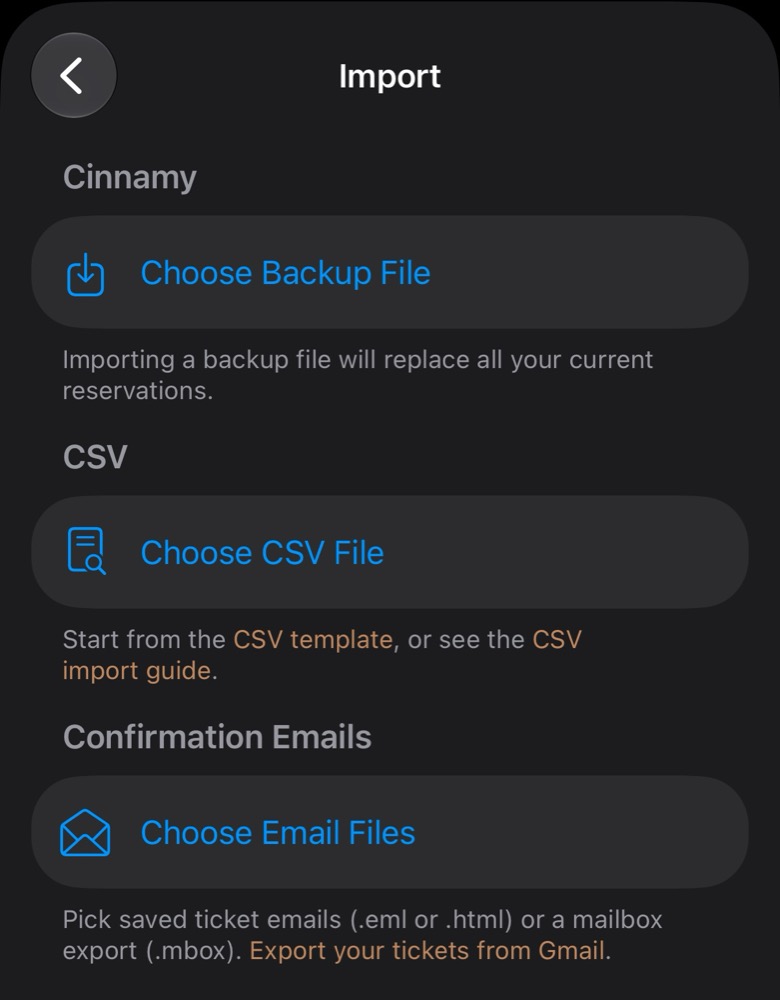
- In Cinnamy, go to Settings → Import.
- Under Confirmation Emails, tap Choose Email Files and pick your
.mboxfile. - Watch your ticket stubs stack up as Cinnamy works through each email.
When it’s done, you’ll see a summary of what was imported, what was already in Cinnamy, and which emails weren’t tickets. Tickets you’ve already added are skipped, so it’s safe to import a newer export later.
If Cinnamy wasn’t sure about a movie or a theater, that ticket is set aside for review. Fix anything that looks off, then tap Save & Import, or tap Discard to skip it.
Keep it going
Your history is in. To keep new tickets coming without lifting a finger, set up an auto-forward rule with the same search.