Import your movie-going history from a CSV
Last updated: October 1, 2026
Your stats are only as good as the history behind them. If you’ve been logging movies in a spreadsheet, a notes app, or another tracker, you can bring all of it into Cinnamy in one go.
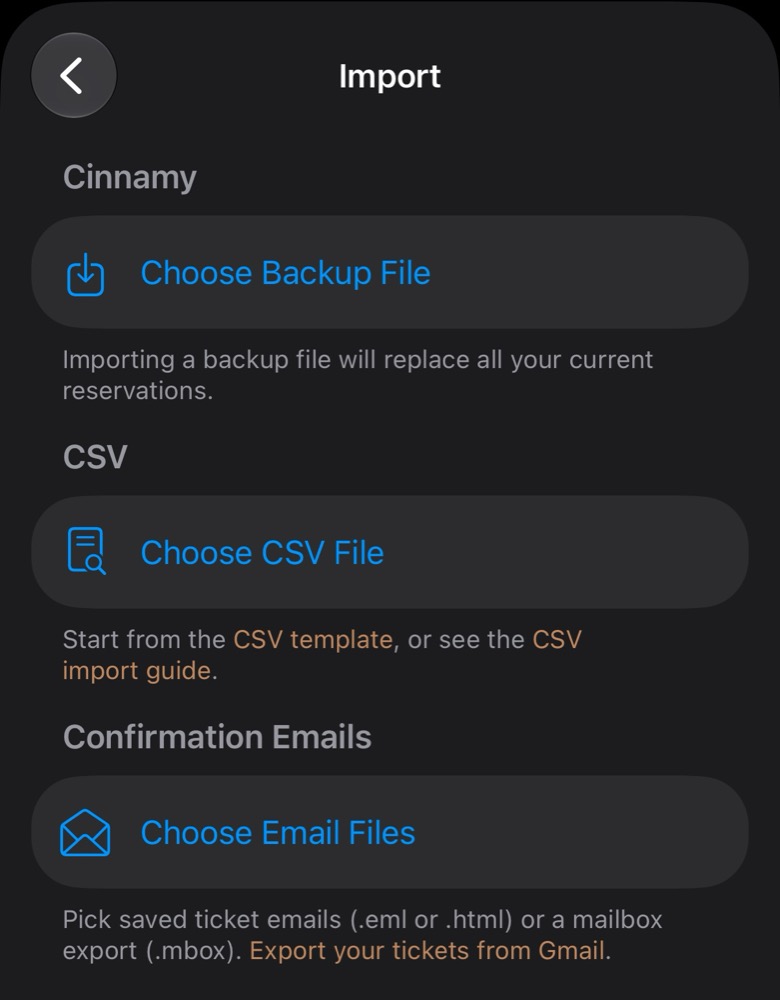
Download the CSV template to get started. It’s also linked from Settings → Import in the app.
Step 1: Fill in the template
Open the template in Numbers, Excel, or Google Sheets. Keep the header row as it is, and add one row per showing.
| Column | Example | Notes |
|---|---|---|
MovieTitle |
Dune: Part Two | Required. Used to look up the movie. |
ShowtimeDate |
2024-03-01 | Required. Year, month, day. |
ShowtimeTime |
19:30 | Required. 24-hour time, or 7:30 PM. Local time at the theater. |
TheaterName |
AMC Lincoln Square 13 | Required. |
TheaterAddress |
1998 Broadway | Required. |
TheaterZip |
10023 | Optional, but helps Cinnamy find the right theater. |
Auditorium |
1 | Optional. A number or a name, like Auditorium 9. |
SeatRow |
H | Optional. Leave blank for unassigned seating. |
SeatNumber |
12 | Optional. |
Format |
IMAX 70mm | Optional. Defaults to Standard. |
TicketPayload |
Optional. The text or link inside the ticket’s QR code. | |
TimeZone |
America/New_York | Optional. Only needed if Cinnamy can’t place the theater. |
A few things to know:
- Column names are case-sensitive.
MovieTitleworks.Movie Titleandmovietitledon’t. The columns can be in any order. - Put quotes around anything with a comma, like
"Regal Union Square, ScreenX & 4DX". Spreadsheet apps do this for you when they export. - Use the movie’s full title. “Dune: Part Two” finds the right film faster than “Dune 2”.
- Showtimes are in the theater’s time zone. Cinnamy looks up each theater and reads the time the way it was printed on your ticket, so a show you saw on vacation lands at the right hour.
Step 2: Export it as a CSV
- Numbers: File → Export To → CSV.
- Excel: File → Save As, then choose CSV UTF-8.
- Google Sheets: File → Download → Comma-separated values (.csv).
Put the file somewhere your iPhone can reach, like iCloud Drive, or AirDrop it to yourself.
Step 3: Import it
- In Cinnamy, go to Settings → Import.
- Under CSV, tap Choose CSV File and pick your file.
- Watch your ticket stubs stack up as Cinnamy matches each row to a movie and a theater.
Step 4: Review anything Cinnamy wasn’t sure about
Rows that match cleanly are added right away. Anything that needs a second look is set aside, and you’ll step through them one at a time when the import finishes. A row gets flagged if:
- Cinnamy couldn’t find the movie. Search for it and pick the right one.
- The movie it found has a different title. Remakes and films with the same name can trip it up. Confirm it’s the one you saw, or search again.
- The theater name or address is empty. Fill them in, or search for the theater.
Tap Save & Import to keep a row, or Discard to skip it.
Import each file once. Rows that match cleanly are added as new showings, even if you’ve imported them before.
Coming from another app
Most movie trackers can export your history as a CSV. Rename their columns to match the template, delete the ones Cinnamy doesn’t use, and import. Rows without a theater will come up for review, so you can fill them in as you go.
If your tickets are sitting in Gmail instead, skip the spreadsheet and import them from a Google Takeout export.